A KDP cover template is a guide file sized for your exact Amazon KDP book size. Your trim size, page count, and paper type determine its total width and height, where the bleed and safe area sit, and how wide the spine is. Use a KDP book cover template by dropping your design on top, keeping text inside the safe area, and hiding the template layer before you export.
In this guide, KDP Always breaks down what each line means, where to get free KDP cover templates, and how to export a file KDP will accept.
Want your exact dimensions right now? KDP Always's free KDP cover calculator turns your trim size and page count into a ready-to-use KDP book size template.
What are KDP cover templates? Why do you need them?
A full KDP cover is one continuous image. The back cover, spine, and front cover sit side by side, with bleed running around all four edges. It is not three separate images stitched together later.
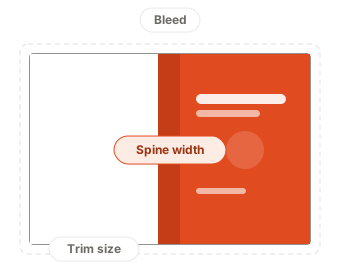
Thinking about just opening a blank canvas at your KDP book size, say 6" x 9", and starting to design? Most authors do, and it's the most common mistake, because the spine width changes with your page count. You're not alone.
A 100-page paperback and a 400-page paperback need different total cover widths even at the same trim size. That's what KDP cover templates are for. They do the math on the total shape so you don't have to.
Many tools offer KDP book templates, but great KDP cover templates should hand you four numbers:
- Total width and height: the whole flat cover, including bleed.
- Spine width: based on your page count and paper type.
- Where the safe area sits: so you know how far to keep text from the edges.
- Where KDP will place the barcode: so your design doesn't collide with it.
Every one of those numbers comes out of your trim size and page count. Our KDP cover calculator does that math for you, free, with no sign-up required just to see the numbers.
What are those lines on a KDP book cover template?
| Line | Position | What it means | What goes wrong if you ignore it |
|---|---|---|---|
| Trim line | Your exact trim size* | The printer cuts along this line. It becomes the physical KDP book size of your finished book. | Nothing outside this line exists on the finished book. |
| Bleed | Extends beyond the trim line, on every outer edge* | A margin of error for the cut. Stretch backgrounds and images all the way through it. | If your background stops at the trim line instead, a slightly off cut leaves a thin white sliver at the edge. |
| Safe area | Inset from the trim line | Keep every piece of text and logo inside this line. | Text placed outside it can be trimmed off or sit right at the edge. |
| Spine | Calculated from page count and paper type | The strip between back and front cover. Different for every book. Hardcover adds an extra hinge rule next to it. | On a book under 80 pages, spine text can get your cover rejected. |
| Barcode area | Kept clear of the bottom edge and the spine | Amazon KDP prints its own barcode here automatically, covering anything underneath. | Any design element placed in this zone gets covered by a plain white box. |
*Paperback and hardcover work differently, see below.
Note that spine text needs a minimum page count. Amazon KDP rejects covers with spine text when the book is too thin, and its help page lists both 79 and 80 pages as the cutoff. To stay safe, we recommend at least 80 pages. Under that, leave the spine blank. At 80 pages or more, your title and author name can go there, and the wider the spine, the more it can hold.
For example, say you finish edits on a 250-page novel and generate a KDP book cover template with your title on the spine. If you later trim the manuscript down to 90 pages but keep designing on the old template, the real spine at that new page count is narrower. The title that fit comfortably on the wider spine can end up crowded, clipped, or sitting outside the safe area on the file you actually upload.
However, KDP hardcover works differently. There's no bleed, since a case wrap folds around the board's edge instead of getting cut. That line marks the front cover edge, not a cut line.
Moreover, there is a hinge zone on each side of the hardcover spine that blocks text and barcodes, since that's where the cover folds. Using a hardcover-specific KDP book template, not an adjusted paperback one, will decrease your error rate. See where the wrap and hinge sit on a KDP hardcover template.
Such a headache? No worries, grab your free KDP cover template download from our KDP cover calculator, and your exact bleed, safe area, spine width, and barcode position will be directly baked into the template. You never need to look up or calculate those numbers yourself, just design inside the lines the template gives you.
How to set up Amazon KDP templates in Canva, Photoshop, or Affinity
The steps to set up a KDP book cover template are the same whether you're using Canva, Photoshop, or Affinity:
- Import the KDP cover template PNG or PDF as the bottom layer of your file.
- Lock the canvas to the template's exact dimensions. Don't resize or crop it once your design is in place.
- Design on top of the template, and stretch backgrounds all the way to the outer edge of the bleed, so you don't risk a white sliver at the edge of your book.
- Hide or delete the template layer before you export the final file.
KDP Always has noticed that authors fall into Canva's most common trap by starting from a preset book cover size instead of a custom canvas set to the template's exact inches.
If your canvas dimensions don't match the template precisely, everything you designed will be positioned wrong once you drop it onto the real guide.
For example, if you design on one of Canva's preset "book cover" sizes and drag it onto the real template afterward, mismatched proportions can shift text that looked safely centered toward the trim line. Always start from a custom canvas set to the template's exact dimensions, not a preset size.
How to export a print-ready PDF with your KDP cover template
Before you export, run through this list:
- Hide or delete the guide layer. It should not appear in the final file.
- Export as a single, flat PDF, not separate pages for front, spine, and back.
- Set resolution to at least 300 dpi, strictly required by Amazon KDP, so text and fine detail don't look soft when printed.
- Embed every font, or convert text to outlines. A font that isn't embedded can silently substitute or disappear on KDP's end.
- Flatten all transparency. Transparent layers are handled inconsistently across design tools and print engines, so flattening removes the risk entirely.
- Don't add crop marks or printer's marks. KDP wants the file at its exact final dimensions, not marked up for a separate cutting step.
- Double-check the dimensions of your exported file to match your template's total width and height exactly.
- Upload it to KDP Always for a free check before you send it to Amazon.
KDP Always has seen this trip up authors more than once. A decorative title font wasn't embedded and quietly became a generic system font, and an unflattened drop shadow rendered as a solid gray box instead of a soft shadow, both invisible until the file reached KDP. A total nightmare, and you won't see it coming.
Once your file exports cleanly, upload it to KDP Always's free KDP cover calculator for a check before you send it to KDP. It tells you whether anything's off and how many issues it found.
What are the most common mistakes with KDP cover templates?
After helping fix more rejected covers than we can count, one pattern stands out. Almost every rejection comes down to the same five mistakes, and every one of them is invisible until Amazon catches it.
- Using a font that isn't embedded, so it looks perfect on your own computer but can silently swap to a completely different font once it reaches KDP's printers.
- Putting spine text on a book with too few pages. Amazon has a hard page-count cutoff for this, and your design software won't warn you if you're under it.
- Reusing an old KDP book template after the page count changed, so the spine width is off by a fraction of an inch, too small for you to notice but not for KDP's printer.
- Your design can look flawless in your own file, but a color space issue on even one image is enough to shift the color once it's printed.
- Placing text or logos inside the barcode reserve area, a spot that looks empty and safe until Amazon prints a plain white box directly over it.
That's why we built KDP Always, to scan your cover against 150+ of these exact failure points in seconds, the same blind spots the human eye often misses. Catch them now, before Amazon does it for you and your launch date slips.
Ready to build your KDP book cover template?
Whether you're starting from scratch, or already have a cover to check before uploading, KDP Always's free tool handles both. It builds KDP templates from your trim size, page count, and paper type, or scans your finished cover against 150+ rules before submitting. No credit card, and no subscription needed.
Frequently asked questions
Get your exact dimensions from your KDP trim size and page count, stretch your background through the bleed around the outside edge, keep text inside the safe area, and export as a single-page, 300 dpi PDF with fonts embedded. A free tool like KDP Always's KDP cover calculator does the math for you and bakes those measurements into your KDP book size template.
KDP cover templates get your dimensions right, but they don't catch everything Amazon checks for: fonts that aren't embedded, the wrong color space, or text sitting in the barcode area all pass right through a template untouched. That's the gap KDP Always's tool helps you check before you submit to Amazon.
At least 300 DPI across the whole file. Below that, images print soft and blurry, and even one low-resolution image is enough to fail the entire cover. A free check from KDP Always confirms every image actually hits 300 DPI before you upload, not just the file as a whole.
No. The Amazon KDP cover size is different for hardcover, because hardcover covers use a case wrap instead of bleed, plus a hinge safe zone on each side of the spine where no text or barcode can sit. Download a fresh KDP book cover template for the binding you're actually printing to avoid problems. Our guide to the KDP paperback cover template and hardcover template shows exactly what changes.